The Philippine Health Insurance Corporation (PhilHealth) is enhancing the security of its digital platforms by implementing Time-Based One-Time Password (TOTP) authentication across all systems. This upgrade introduces two-factor authentication (2FA), adding an extra layer of protection to safeguard user data and prevent unauthorized access. This blog post provides a comprehensive guide to setting up and using the PhilHealth EPRS Authenticator App with TOTP authentication.
What is TOTP Authentication?
TOTP authentication generates a unique, six-digit code that refreshes every 30 seconds. Users must enter this code along with their standard login credentials to access PhilHealth’s systems. By requiring both a password and a time-sensitive code, TOTP significantly reduces the risk of unauthorized access, ensuring your account remains secure. No need for a “One-Time Pin (OTP)” to be sent to your mobile number, the TOTP is a auto-refreshing token code generated by the app and it is linked to PhilHealth’s servers.
Why TOTP Matters: Key Benefits
-
Enhanced Security: TOTP adds a dynamic layer of protection, making it harder for unauthorized users to gain access, even if they have your password.
-
Broad Compatibility: The system supports popular TOTP-compliant apps, including:
- Google Authenticator (Click to Download)
- Microsoft Authenticator (Click to Download)
- Other TOTP-compatible applications
-
User-Friendly Setup: The setup process is straightforward, allowing users to quickly enable 2FA on their accounts.
-
Proactive Data Protection: By adopting TOTP, PhilHealth ensures that sensitive user information is safeguarded against evolving cyber threats.
How to Set Up TOTP Authentication for Your PhilHealth Account
Follow these simple steps to activate TOTP authentication and secure your PhilHealth account:
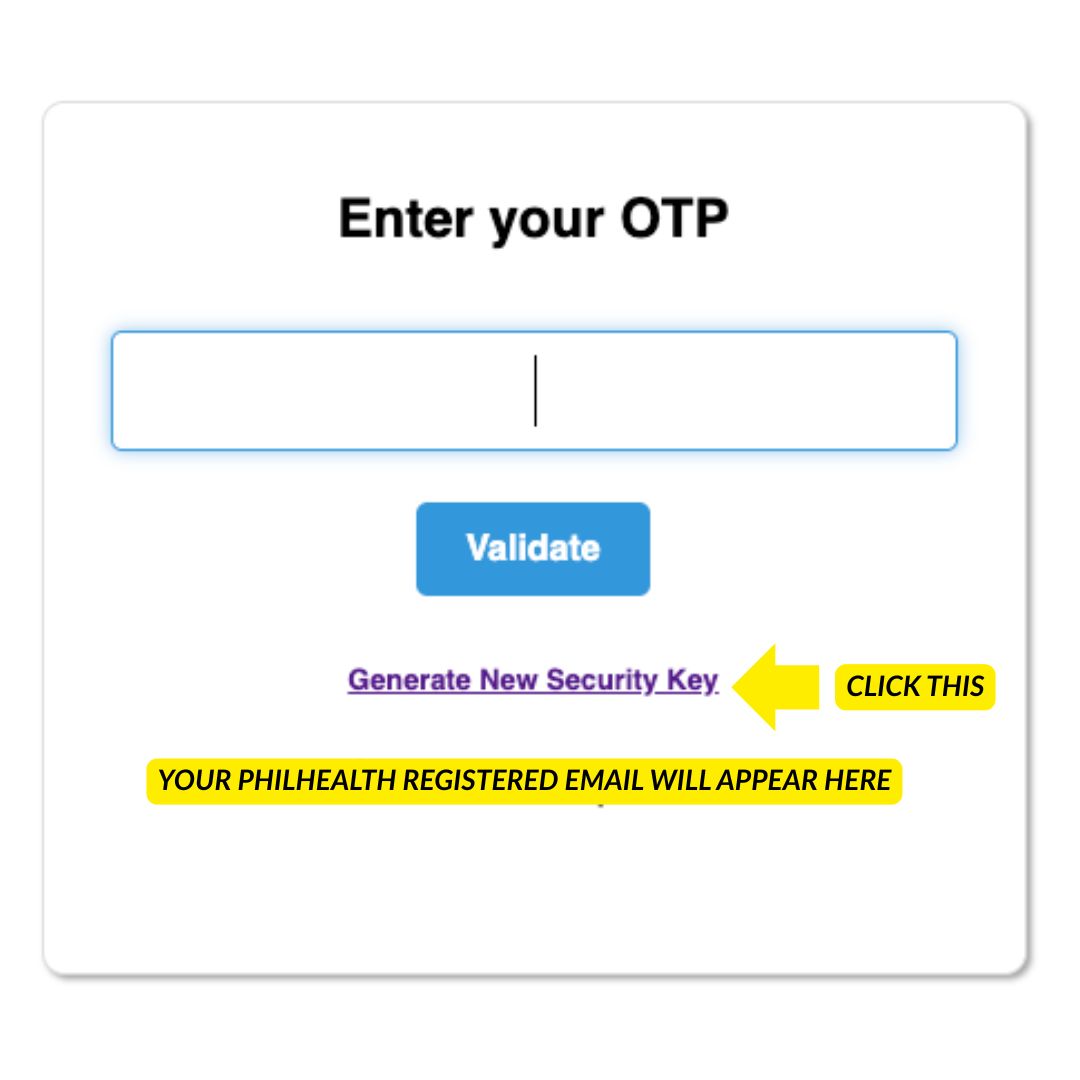
Step 1: Generate New Security Key to Activate TOTP Authentication
Upon your next login to the PhilHealth Electronic Premium Remittance System or EPRS, you will be prompted to enter your OTP. We assume you have not yet set up your TOTP authentication, so click on “Generate New Security Key”. You will receive an email on your registered email with PhilHealth on the instructions to install the TOTP App.
Step 2: Download a TOTP-Compatible Authenticator App
To generate TOTP codes, you’ll need to install a TOTP-compliant authenticator app on your mobile device. Recommended apps include:
- Google Authenticator (available on iOS and Android) Download Here
- Microsoft Authenticator (available on iOS and Android) Download Here
- Other TOTP-compatible apps like Authy or LastPass Authenticator Download your preferred app from the Google Play Store or Apple App Store.
Step 3: Scan the QR Code
Check your email, PhilHealth will provide you with a QR code. Open your authenticator app and scan the QR code to link it to your PhilHealth account. This will link and enable the app to generate time-sensitive codes for your logins.
Step 4: Enter the TOTP Code
Once the QR code is scanned, your authenticator app will begin generating six-digit codes that refresh every 30 seconds. Enter the current code displayed in the app when prompted during login to complete the authentication process.
Important Notes for a Smooth Setup
-
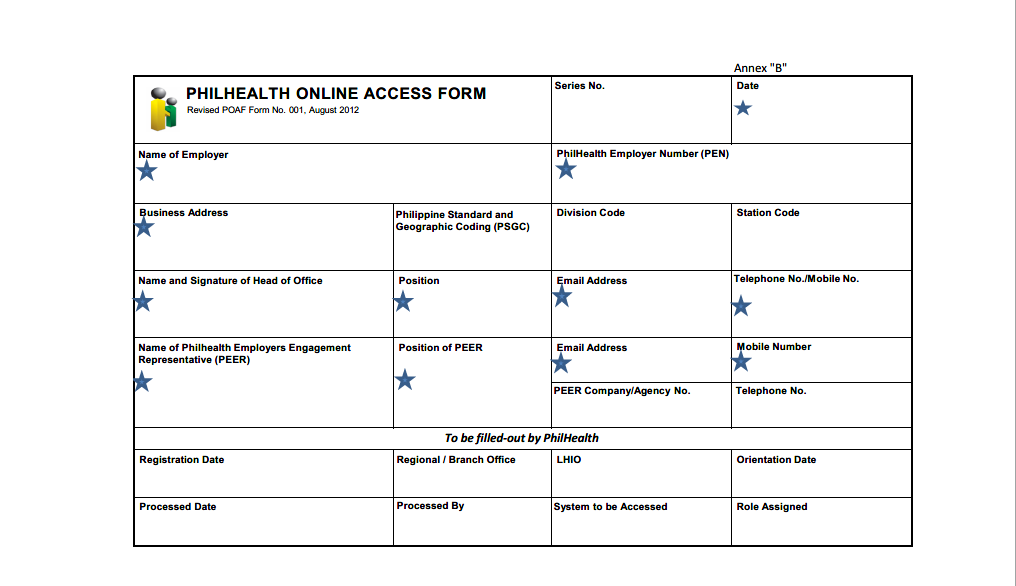
Active Email Address: Ensure that the email address registered in the PhilHealth EPRS is active and accessible. A Gmail account is recommended for compatibility. If your registered email is inactive or outdated, update your login credentials by:
- Submitting an updated PhilHealth Online Access Form (POAF) to your local PhilHealth office, or
- Emailing the forms to your assigned PhilHealth Accounts Information Management Specialist (P-AIMS).
- Download the POAF template here.
-
Secure Your Device: Since the authenticator app will store your TOTP credentials, ensure your mobile device is protected with a strong password or biometric lock.
-
Backup Codes: During the setup process, PhilHealth may provide backup codes in case you lose access to your authenticator app. Store these codes in a secure location.
-
Only Generate New Security Key When Needed: Do not click on “Generate New Security Key” indiscriminately or if not needed because this will unlink the TOTP authentication and you will need to wait for a new email from PhilHealth and setup a new TOTP authentication with your authenticator app again.
Frequently Asked Questions (FAQs)
Q: What if I don’t have a smartphone to use an authenticator app?
A: Visit your local PhilHealth office or contact your P-AIMS officer for alternative authentication options or assistance.
Q: Can I use the same authenticator app for multiple accounts?
A: Yes, most authenticator apps (e.g., Google Authenticator, Microsoft Authenticator) support multiple accounts. Simply scan the QR code for each account you want to secure.
Q: What should I do if I lose access to my authenticator app?
A: Reset your TOTP authentication by Generating a New Security Key. This will bind your account to a new TOTP ‘session’ and token generation setup.
Stay Secure with PhilHealth
By implementing TOTP authentication, PhilHealth is taking a proactive step to protect your sensitive information and ensure a secure user experience. Follow the steps outlined above to set up the EPRS Authenticator App and enjoy peace of mind knowing your account is safeguarded by cutting-edge security measures.
For further assistance, reach out to your local PhilHealth office or contact your PhilHealth Accounts Information Management Specialist (P-AIMS). Stay secure and stay informed!